How to screen record with audio and webcam, and sound clear doing it
A recording with your voice and face has four sources: your screen, your microphone, the computer's sound and your camera. Each has its own switch and its own way to fail, and fixing one never fixes another.
By the VeoRec team · · 11 min read
In short
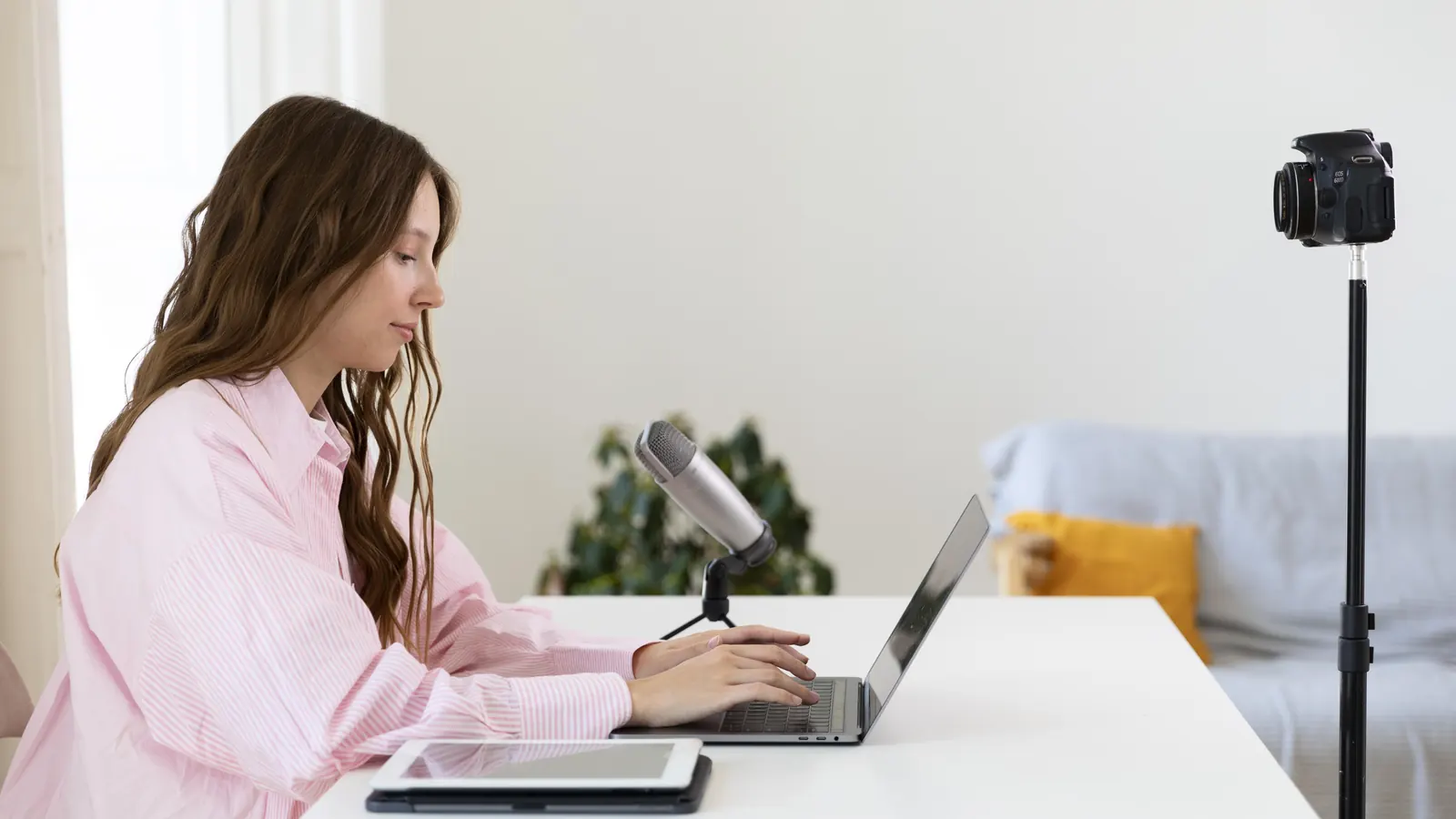
To screen record with audio and webcam, treat your voice, the computer's sound and your camera as three separate settings. Pick the microphone in the recorder, tick tab or system audio in Chrome's share dialog only if the viewer needs that sound, and wear headphones so the speaker sound does not leak into the mic. Keep the camera bubble small, in a corner that covers nothing important, and blur the background if the room distracts.
- Your voice, the computer's sound and your camera are three separate switches; check each one before you record.
- Choose the microphone by name in the recorder; the default device is often the wrong one.
- Wear headphones whenever you capture tab or system audio, or the speakers will echo into your mic.
- Avoid using a Bluetooth headset's own microphone; many switch to a low-quality call mode when the mic is on.
- Put the camera bubble in the corner with the least going on, and move or hide it when it covers something.
- Light your face from the front, with the camera near eye level, before reaching for background blur.
To screen record with audio and webcam you need four things working at once: the screen, your microphone, the computer's own sound, and your camera. They are controlled in different places, which is why so many recordings come out with a perfect picture and no voice, or a clear voice and a faint echo of a Slack ping under every sentence.
This guide takes the four sources one at a time, then puts them together in a step-by-step run. The examples use Chrome, because that is where most work recordings happen, but the audio and camera advice applies to any recorder.
Four sources, four switches
Each source is switched on in a different place, and each fails in its own way.
| Source | Where you turn it on | How it usually fails |
|---|---|---|
| Screen | Chrome's share dialog: a tab, a window or the entire screen. | Wrong tab or wrong monitor; a minimised window records as frozen. |
| Your voice | The recorder's microphone menu, after Chrome asks for mic permission. | The laptop mic is picked instead of the headset; permission was blocked once and stays blocked. |
| Computer sound | The audio box in Chrome's share dialog: tab audio, or system audio for the entire screen. | Box left unticked; system audio not offered on that system; echo from speakers into the mic. |
| Camera | The recorder's camera menu, after Chrome asks for camera permission. | Another app holds the camera; the bubble covers the button you are explaining. |
Keep this split in mind and troubleshooting gets easy. No voice is a microphone problem. No page sound is a share dialog problem. Black bubble is a camera problem. They almost never affect each other.
Choose the microphone on purpose
Most recorders start with the system's default input, and the default is often not what you think. Plug in a USB mic and the laptop's built-in mic may still be the default. Connect a webcam and its little microphone, a metre away on top of the monitor, may quietly take over. Always pick the mic by name in the recorder's menu, and say a test sentence while watching the level meter move.
Which mic to use matters less than how close it is. A cheap wired headset with the mic near your mouth usually beats an expensive desk mic placed at arm's length, because the closer the mic, the more of your voice and the less of the room it hears. If you use a desk mic, bring it within a hand's width or two of your mouth and slightly off to the side so your breath does not hit it directly.
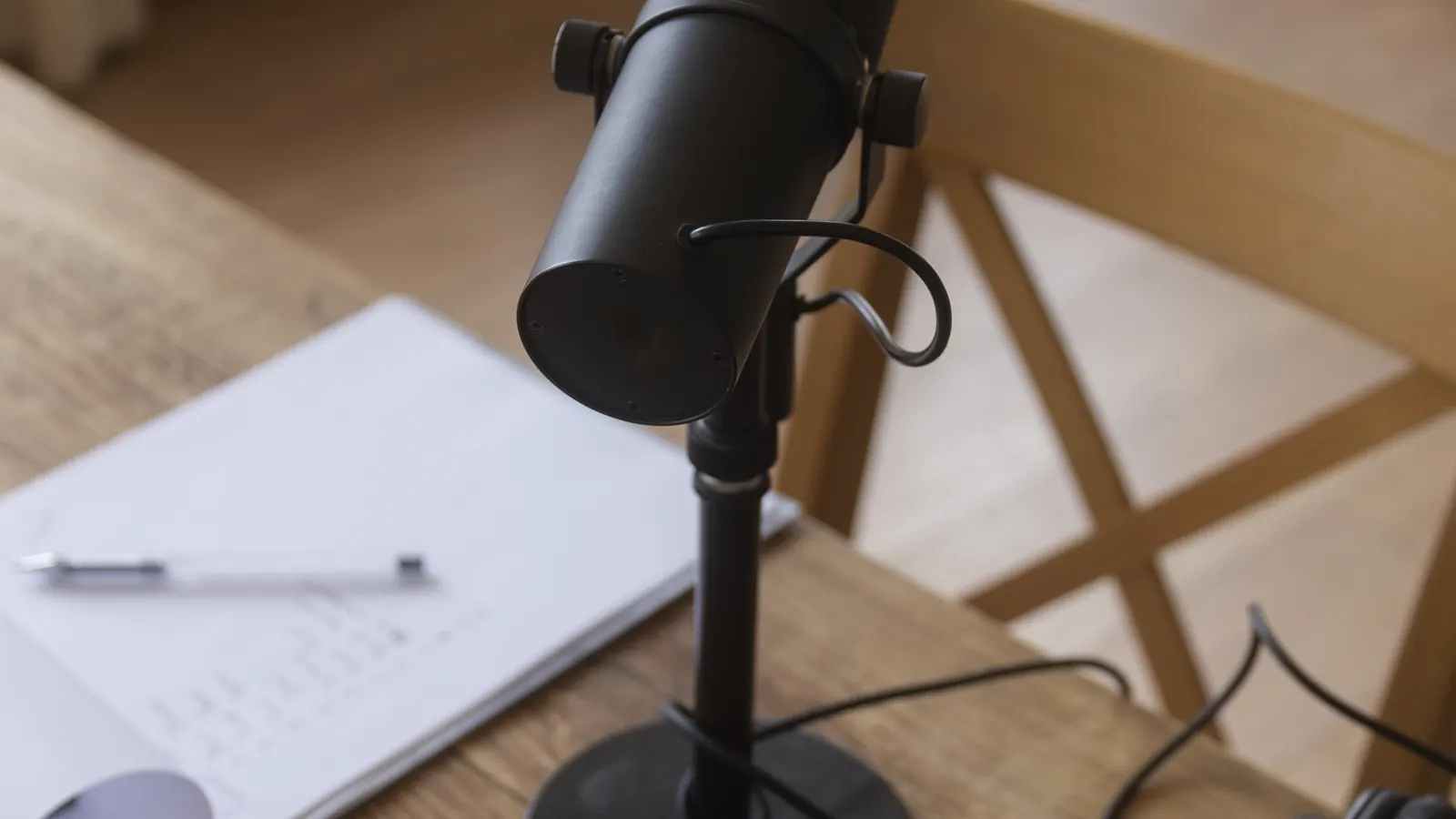
When you watch the meter, aim for your normal speaking voice to land in the upper middle of the range, with your loudest laugh or emphasis staying out of the red. If the meter barely moves, move closer before raising the input level. If it hits the top on ordinary words, back off a little; clipped audio cannot be repaired afterwards, while slightly quiet audio can be raised.
One trap catches nearly everyone with wireless earbuds. Many Bluetooth headsets switch to a call mode when their microphone is in use, and in that mode both your voice and what you hear drop to phone-call quality. If your voice sounds thin and muffled in the recording, that is probably why. Use a wired mic, or the laptop mic, and keep the earbuds only for listening.
Chrome remembers microphone permission per site or extension. If you clicked Block once, the recorder will keep failing quietly. You can review it under Settings, Privacy and security, Site settings, Microphone, where you can also set the default device (Google's help page). On Windows, check Settings, Privacy & security, Microphone as well. More on room, distance and levels in how to sound good on recordings.
Add the computer's sound without echo
Sometimes the viewer needs to hear what the computer plays: a product tour video, an alert sound in a support tool, a prototype's audio feedback. Chrome gives you two ways to capture it, both in the share dialog.
- Tab audio: share a Chrome tab and leave Also share tab audio ticked. You get that tab's sound and nothing else. It works on Windows, macOS, Linux and ChromeOS.
- System audio: share the entire screen and turn on the system audio option. You get everything the computer plays, including other tabs, music and notification sounds. It is offered on Windows and ChromeOS, and on a Mac only with recent Chrome on macOS 14.2 or later, as Addpipe documented in early 2026.
Whichever you use, wear headphones. If the sound comes out of your laptop speakers, your microphone hears it a fraction of a second later and records it again. The result is a hollow doubled sound, or page audio that seems to come from the far end of a corridor. Echo cancellation in the browser helps, but it is not built for a recording where you want both copies. Headphones remove the problem entirely.
Then check the balance. A product video playing at full volume will drown out your voice. Turn the tab or the system volume down to about half and keep talking over it at your normal level. If you only need to show that a sound plays, a short burst is enough; you do not need to talk over a full minute of music.
A worked example: you are recording a bug where a support dashboard should chime when a new ticket arrives, and it does not chime for tickets from the mobile app. Share the dashboard tab with tab audio on, headphones in, tab volume at half. Create a ticket from the web form and let the chime play, then say "that is the sound for a web ticket". Create one from the mobile app and stay quiet for three seconds so the silence is obvious. The developer hears the difference without you having to describe it, and nothing else on your computer makes it into the take.
Decide whether your face belongs in this one
The camera is optional, so decide per recording instead of leaving it on by habit: a face helps when the viewer does not know you yet or the message has a human side, and it gets in the way on a dense screen such as a code review or a spreadsheet. Camera on or off covers when it helps.
Place the camera bubble where it covers nothing
Most apps keep their busiest controls in predictable places. Web apps put navigation down the left and primary buttons top right. Chat widgets live bottom right. Editors keep file trees on the left and minimaps on the right. Before you start, look at the screen you will show and find the quietest corner, then put the bubble there.
- Bottom left is the safest default for most web apps: usually empty below the sidebar navigation.
- Bottom right is often taken by chat widgets, cookie banners and toast messages. Check it first.
- Top corners cover tabs, search boxes and account menus. Use them only for slides or full-screen video.
- Size: small enough to show your face, not your whole room. If viewers can read the text under it, it is not too small.
Try it on a mock screen below: drag the bubble around, change its size and shape, and see what it covers at each size.
If the bubble must move mid-recording, move it at a natural pause, not while you are pointing at something. Viewers follow motion, and a bubble sliding across the screen pulls their eyes away from your cursor.
Light and frame your face before you blur anything
Background effects get the attention, but light does more for how you look. Three habits cover most of it.
- Face the light. A window in front of you, or a lamp behind your screen, lights your face evenly. A window behind you turns you into a silhouette, and no camera setting fully fixes that.
- Raise the camera to eye level. A laptop on a desk films up your nose and shows the ceiling. Two or three books under the laptop fix the angle for free.
- Frame head and shoulders. Leave a little space above your head and sit far enough back that your face does not fill the bubble. In a small circle, a slightly wider frame looks calmer.
Look at the camera lens for your first sentence and your last one. In between, it is normal to look at the screen you are explaining. Viewers expect it.
If you wear glasses, watch for the screen reflecting in them as two bright rectangles. Lower the screen brightness a little, add light from the side, or raise the camera a little and tilt it down until the reflection slides out of the lenses.
Blur or replace a messy background
Background blur keeps your face sharp and softens everything behind it: the drying rack, the unmade bed, the whiteboard with next quarter's plans. Replacement swaps the room for a colour or an image. Both work by separating you from the background, frame by frame, so they look best with even light and a background that contrasts with your clothes and hair.
Blur is the more forgiving of the two. When the separation slips for a moment, around raised hands or headphones, a blurred background hides it much better than a solid replacement does. Choose replacement when the room itself is sensitive, and blur when it is merely untidy.
Where the processing happens matters for privacy. In VeoRec, the camera bubble's blur and replacement are processed locally in your browser, so the raw room is never sent anywhere to be cleaned up. If you use another tool, check where its background effect runs before you rely on it for anything confidential. The webcam background blur page shows the options in more detail.
Talk over the screen like you are sitting next to someone
With voice and camera both running, the hardest part is no longer technical. It is talking and clicking at the same time without losing the viewer. These are the habits we would teach a new teammate first.
- Say where you are about to look, then move. "Now the invoice list, top left" before the cursor travels gives the viewer's eyes a head start.
- Point with the cursor, then hold still. A cursor that circles the button while you talk is hard to follow. Land on it, pause, then click.
- Pause after each click. Pages load, menus open, and the viewer needs a beat to see what changed. Silence for a second is fine; it reads as calm, not as a mistake.
- Talk to one person. Picture the colleague who will watch it and explain it to them. You will skip what they already know and slow down where they would get lost.
- Drop the filler warm-up. Start with what the video is for: "This is the refund bug from Tuesday, and it reproduces every time." Then show it.
If you lose your thread, stop talking, take a breath and pick up from the last complete sentence. Most recorders let you pause; a trim afterwards removes the gap. Re-recording an entire walkthrough because of one stumble usually produces a stiffer second take.
Put it together: a recording with voice, sound and camera
- Prepare the screen Open what you will show, close what you will not, pause notifications and mute chat apps if you plan to record system audio.
- Put on headphones Wired headphones, or earbuds used for listening only. This one step prevents echo.
- Pick the mic by name In the recorder, choose the headset or USB mic explicitly. Say a test sentence and watch the level meter.
- Turn the camera on and check the frame Light in front, camera at eye level, head and shoulders in the bubble. Turn on blur if the room distracts.
- Choose what to share In Chrome's dialog pick the tab, window or screen. Tick tab audio or system audio only if the viewer needs that sound.
- Place the bubble Drag it to the quietest corner of the screen you are about to show, at a size that hides nothing important.
- Record ten seconds, then play it back Check your voice, the computer sound, the balance between them and the bubble position. Fix and record for real.
That ten-second test feels like a waste the first few times. It stops being a waste the first time it catches a muted mic before a twelve-minute walkthrough.
Fix the problems that come up most
The camera shows black or says it is in use
On Windows, a camera is usually held by one app at a time. If a video call app, or another browser tab with a call, has the camera open, the recorder gets nothing. Close the other app and try again. Also check Settings, Privacy & security, Camera, including the switch that lets desktop apps use the camera (Microsoft's privacy page).
On a Mac, the camera and microphone each have their own list under System Settings, Privacy & Security. If Chrome is switched off there, the browser's own permission prompt never gets a chance. Turn Chrome on, then quit and reopen it.
My voice is there but the page sound is not
The audio box in the share dialog was unticked, you shared a window (which normally carries no sound), or the page was muted in its own tab. Record a tab with the box ticked and play a sound to confirm.
The page sound is there but my voice is quiet
Either the mic is far away, the wrong mic is selected (a webcam mic across the desk is the usual culprit), or the computer sound is too loud. Move the mic closer before you raise its gain; raising gain also raises the room.
My voice sounds like a phone call
This is the Bluetooth call mode described above. Switch the recorder's microphone to a wired mic or the laptop mic and keep the Bluetooth headset for listening.
I sound like I am in a bathroom
That boxy, ringing sound is the room, not the mic. Bare walls, a hard floor and a glass desk bounce your voice back into the microphone a few milliseconds late. Moving the mic closer is still the first fix, because it raises your voice relative to the reflections. After that, soft things help: record facing into the room rather than into a wall, close the curtains, put a jumper or a towel on the desk in front of the mic. A small room full of clothes and books often sounds better than a large empty office.
What to do next
Set your defaults once: the mic you will always use, headphones by the keyboard, the camera raised to eye level and a corner for the bubble. After that, every recording starts from a good place and the ten-second check is all you need.
VeoRec records your screen with your microphone and an optional camera bubble, with blur or replacement done in the browser, and the share link is copied when you stop. If you are new to recording in Chrome, start with how to screen record on Chrome, then read the screen recording tips on preparing the screen and pacing.
Frequently asked questions
How do I screen record with audio and webcam at the same time?
Use a recorder that supports a camera overlay, choose your microphone and camera in it, then pick a tab, window or screen in Chrome's share dialog. Tick the audio box there if you also want the computer's sound. Do a ten-second test before the real take.
Why does my screen recording have an echo?
Your microphone is picking up the computer's sound from the speakers while the recorder also captures it directly. Wear headphones whenever you record tab or system audio, and the echo disappears.
Can I record my voice and the computer sound together?
Yes. Your voice comes from the microphone, and the computer sound comes from the share dialog: tab audio when you share a Chrome tab, or system audio when you share the entire screen on a supported system. Keep the computer sound lower than your voice.
Why does my Bluetooth headset sound bad in recordings?
Many Bluetooth headsets drop to a low-quality call mode when their microphone is in use. Use a wired microphone or your laptop mic for the voice, and keep the Bluetooth headset only for listening.
Should I wear headphones when I screen record with audio?
Yes, whenever the recording includes tab or system audio, or anything plays from the computer while you talk. Without them, your microphone hears the speakers a fraction of a second late and records the sound twice, which is where the hollow echo comes from. Wired headphones, or earbuds used only for listening, are the safest choice, because a Bluetooth headset whose mic is in use often drops to call quality. If you only record your voice, they are optional, but they still keep a stray notification sound from your speakers out of the mic.
Does background blur send my video to a server?
It depends on the tool. Some process the effect on your computer and some in the cloud. In VeoRec, background blur and replacement for the camera bubble run locally in your browser.